Unofficial archive. This is a read-only, community-run archive of the Apple Support Community. It is not affiliated with or endorsed by Apple Inc.

Cannot sign into Windows iCloud: get a pop-up with only a red circle with a white cross

Hi,

I am not able to sign into Windows iCloud. When I try, I get the following pop-up (after the busy sign circles for a while):

No other messages than this pop up. When I put in an invalid password, I get the message 'Your Apple ID or password is incorrect'. So it seems, that my pop-up is not related to invalid credentials.

I am on Windows 11 Pro (22621.819) and use iCloud 14.0.162.0.

I have tried an uninstall / re-install, but this didn't help.

Any suggestions how I could solve this problem or how I can find any hints on why iCloud generates the rather non-informative pop-up?

Thanks in advance!


85 replies

I spent a few hours trying to reverse engineer what the issue is here with process monitor and eventually resolved it. The client certificate that iCloud uses to talk to the server appears to be getting broken in some way.


How I fixed it:

* certmgr.mmc, file->add/remove snap-in, certificates, my user account. There should be a certificate in Personal\Certificates with a Issued By of Apple iPhone Device CA. Delete it.

* In file explorer, go to %APPDATA%\Microsoft\Crypto\RSA. There should be a folder with a name like S-1-5-21...or the like. Go in there.

* Backup this directory before messing with it.

* Open each file with Notepad, starting with the oldest one. You're looking for one that has the string APNSDaemon in it. Delete that one.

* Restart the computer and icloud signin should work now.

Thanks so much for everyone that contributed. This worked great! But I'd like to add the a little correction. In this part:

* certmgr.mmc, file->add/remove snap-in, certificates, my user account. There should be a certificate in Personal\Certificates with a Issued By of Apple iPhone Device CA. Delete it.

The correct command to run is: MMC This will bring up the Microsoft Management Console. Alternative you can run the command: certmgr.msc to get directly to the snap-in.


Oh and for me I had three certificate listed in the certmgr.msc and I seemed to need to delete all of them. To be precise, I deleted the first one in the list, and delete the file in the RSA folder, but still couldn't login, I went back to the certmgr.msc and saw the other two and deleted them and that did it.


Again, I can't thank you all enough for posting to this. I had been on the phone for hours with Apple support, and they did acknowledge the issue, but told me it would require an update. Who knows how long that could take.


I was able to fix this by deleting my Outlook profile (via control panel/mail) and creating a new one. It sounds odd but once I built a new profile and added my accounts, iCloud started working and the red X and all issues went away. I had this issue on multiple machines and the only fix was a new Outlook profile. Hope this helps someone.

I just deleted the file. I had quite a few files, fortunately user Jindong has written a script that will tell you which file has the "APNSDaemon" text in it.

This is the script - "Get-ChildItem -Path "$env:APPDATA\Microsoft\Crypto\" -File -Recurse | ForEach-Object { if (Get-Content $_.FullName | Select-String -Pattern "APNSDaemon") { $_ } } | Format-Table -Wrap".


Here is a link to the discussion. https://discussions.apple.com/thread/254365463?answerId=258575857022&page=3


I realise this has been going on for some time. I recognise that this problem presents its self in a range of ways. The suggestions people posted on this particular thread has helped me so I wanted to add my findings here too.


I have downloaded and installed the iCloud app on my windows 10 computer but I get the error message "User ID or password incorrect" when I try to login with my Apple ID and my associated password. I have attempted to reset my password twice. I can loginto My iPhone 14 and the App store using these same Apple ID credentials, so I know they work. For me the problem is purely with the iCloud App on my Windows 10 desktop computer.


When looking into the suggestions by DoctorBrown and Bluesky_114 below somewhere along the way I got an error:
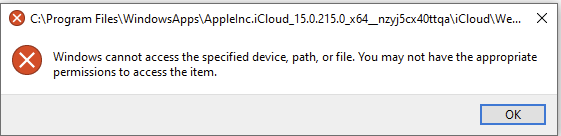


Which together with the suggestions in this post made think that permissions to access files needed for this app are not being handled correctly.


I went to: C:\Program Files\WindowsApps


I right clicked on the WindowsApps folder and selected Properties:
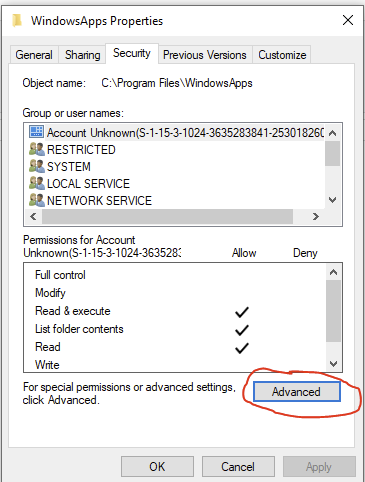


I clicked on the "Advanced" button.


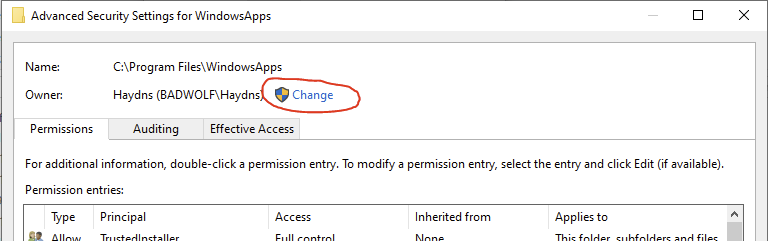
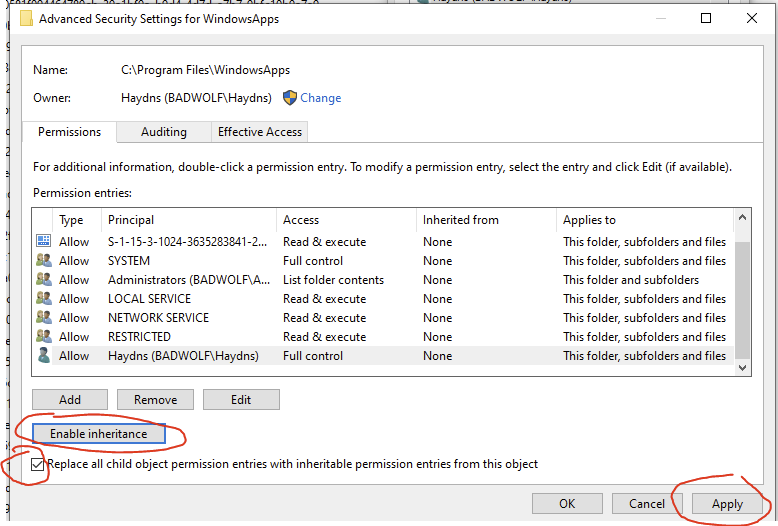
I then got the screen below. The "Owner" was not set correctly so I clicked on the "Change" button


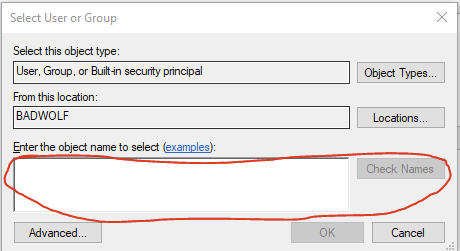
I got this window. I typed my user name in the "Enter the object name to seleect" text box then clicked the "Check Names" button. The correct User name then appears in the box.
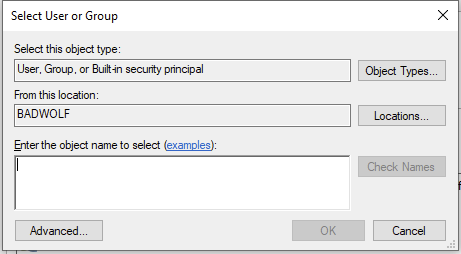


I then clicked ok.


The owner name was now correct back on this screen below:
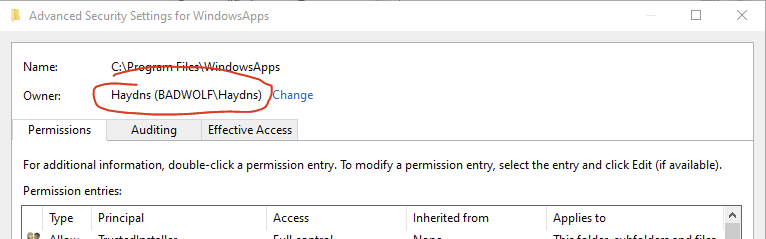


It is not shown in this screen capture since I had already actioned it, but there was a little check box under the owner name which asked if I wanted to propogate the ownership changes to all the child files and folders in this folder, which I did.


So the permissions were then propogated.


I see there is a similar box at the bottom of this window
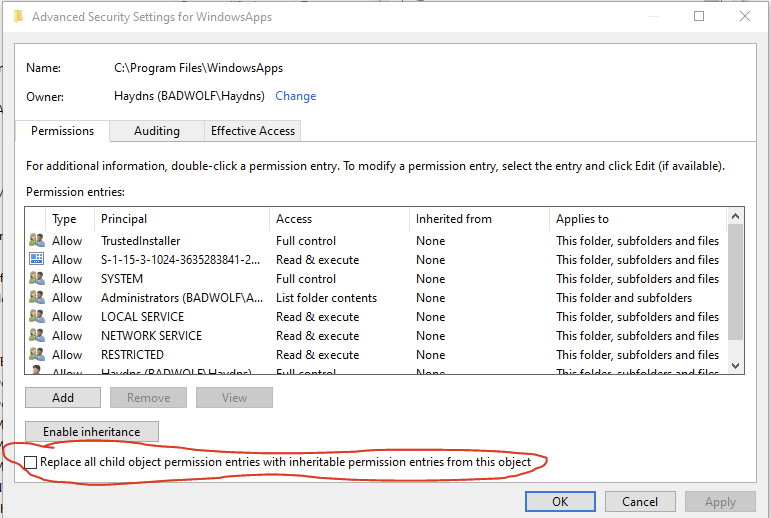


Next I was trying to actually edit the permissions that I had as a user for this folder and everything in it. I clicked on my USer Name, but when I clicked edit, I got an error message saying that the entry was corrupt and that I should create a new one. I therefore clicked on the Principal setting which said BADWOLF/Users and removed it.


I then Clicked "Add".
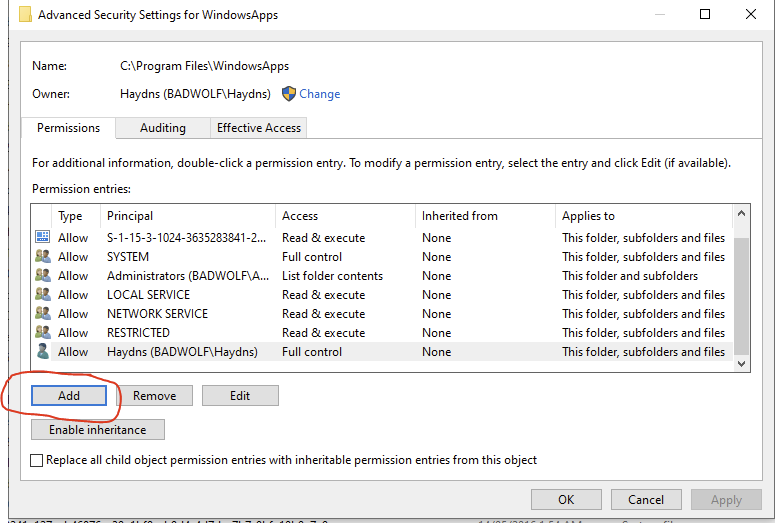


Then clicked "Select a principal"
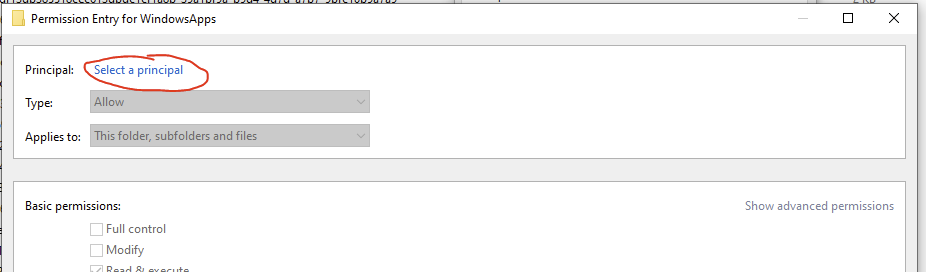


Then again typed my user name in the text box "Enter the object Name to select" and clicked "Check Names". The full user name then appears and I clicked OK:


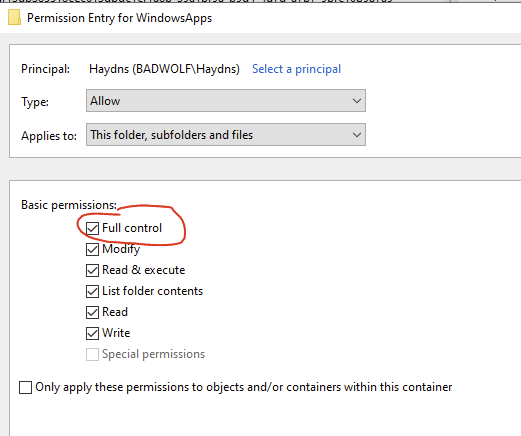
I was then able to select basic permissions, in which I chose "Full control"


When I clicked OK the Principal appeared in the Permissions Entry table. I clicked enable inheritance, "Replace all child object permission entries with inheritable permssion entries from this object" and clicked apply.


I then got a window asking me if I wanted to continue:
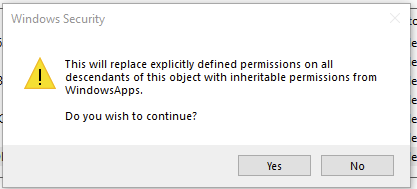


I clicked yes.


The permissions are applied which takes about a minute or so.


I clicked OK to get out of each of the WindowsApps properties dialogue boxes.


I closed the iCloud App.


I couldn't open the iCloud app after all my messing around. so I restarted my computer


Hi,

Very helpful. I found this reddit thread where you can download version 7.18.0.22 of iCloud:https://www.reddit.com/r/iCloud/comments/gppnku/nonmicrosoft_store_download/


This one worked for me for logging in. As pointed out be joetorch you can upgrade to version 14 using the microsoft shop, but with that version: if you sign out, you are back to the same problem.


The problem seems to be related with the 2F authorization.

Further to my previous post, if you go back to version 13 of the iCloud for windows app you will be able to log back into your account. After that, you can update to the latest version from the Microsoft Store. If you log out of your account, it won't let you in again and you'll have to do that process over. Must be a bug in version 14.

I had an older machine with version 7.21.0.23 installed. I was able to find a copy of this older version, install it, and it worked. This fixed the problem for me. New version definitely has problems, not the least of which: if you're going to the trouble of showing an error box, at least have the decency to include some message text!

I think I have another step to workaround this issue. It looks like this issue is cause by issues with security. There can be multiple reasons the security config is messed up. I trust that someone with additional knowledge can verify this.


  • Open a cmd prompt: WIN-R > cmd
  • Enter the command:
wmic useraccount get name,sid
  • You will see a list of the user accounts configured on your system. The string have a format of:
S-1-5-21-...xxx-500, S-1-5-21-...xxx-1002, etc.

The numbers before the last dash should all be the same for all the users. This is the SID's of the user accounts.

  • Note the one for the name of the user that is logged in that can't login to iCloud.
  • Open Explorer and go to the following folder:
%appdata%\Microsoft\Crypto\RSA
  • I think you should see only one folder here that has the name of the SID determined above. If you see more than one, then move or delete the one that has a different SID. (I moved it to a Temp folder to make sure I could restore it in case this breaks something else.)
  • Log off and log back on. ( not certain if this is really necessary.)


You also may need to do the steps described by hronk and scuba-fan.


I'm not an expert on Security, YMMV. Any corrections or comments are welcome.


Solution is to use the earlier iCloud app 12.xxxx vice 13.xxx

I was able to find an old version of Windows iCloud version 13.4.101.0 at the UpToDown website. I installed the older version and it worked straight away. Hope that helps

With the new data encryption in icloud, older versions cannot be used any more.


But the method described by hronk works and as J0hSe wrote, for me it was enough to delete the file in

%APPDATA%\Microsoft\Crypto\RSA.

Thanks barryh5, however, if you are referencing to going to %APPDATA%\Microsoft\Crypto\RSA. There should be a folder with a name like S-1-5-21...or the like. open files and look for APNSDaemon and delete those files... I also did this.

I used hronk's instruction and it did not work.


But after that I delete only iCloud Outlook in standard Windows 10 settings without deleting iCloud. And after that everything working.


P. S. Additional good news: in current iCloud version you finally can change iCloud Drive directory!

I'm guessing the problem is with version 14 of the iCloud for windows app. 00004000 I went back to version 13 and everything is working.

Behind my home firewall/router I got the same issue: Empty error message. Once I connected to a mobile hotspot the authentication worked without issues. I tested this several times. Worked on mobile hotspot, stopped working when connected behind my home firewall/router. I started to suspect blocked packages. However after some more testing it suddenly started working behind my home firewall/router also. So I really did not get any wiser. I do not completely rule out firewall issues, though.


Can anyone in this forum confirm if they also see different behavior based on how they connect to the internet? Through a restrictive firewall or not? What is strange I only see this unstable behavior on a Windows Client. My mac client works ok through my home firewall/router, always.

Further info to my previous post. I tried signing in with an old Apple ID I used for work and it worked fine. This leads me to believe it must have something to do with my account. I have not yet tried signing out and back in again or changing my current Apple ID as doing so will result in losing some of my data. I may have to if it is the only way to fix this. Anyone out there brave enough to try it?

I'm glad the fix is working! However as someone who doesn't do any tinkering behind the scenes, the instructions are a bit overwhelming!


(The first part I don't even know what this means:)

How I fixed it:

* certmgr.mmc, file->add/remove snap-in, certificates, my user account. There should be a certificate in Personal\Certificates with a Issued By of Apple iPhone Device CA. Delete it.


I was able to follow this next thread- and found 4 files in the S-1-5-21 folder. None of them contain much text, but the first one does have the demon terminology! I'm afraid to delete it though, as I don't know what is meant by "backup this directory before messing with it" I don't know how to back up a directory or what one even is hehe.


* In file explorer, go to %APPDATA%\Microsoft\Crypto\RSA. There should be a folder with a name like S-1-5-21...or the like. Go in there.

* Backup this directory before messing with it.

* Open each file with Notepad, starting with the oldest one. You're looking for one that has the string APNSDaemon in it. Delete that one.

* Restart the computer and icloud signin should work now.

Here is what's strange. On one iCloud account, I login to the iCloud app go through 2FA and the app loads. However on another after 2FA it pinwheels for about 10 seconds before throwing the dreaded red X. I was able to duplicate this on two different computers, one completely virgin which never had iCloud installed on it.


I tried to follow the steps above to correct the account that won't login to no avail. Considering one of the two Apple IDs are able to login to the app it seems there is an issue with the account itself than the app.

Install an older version. Which CANNOT be obtained from the Microsoft store!

Thank you!!! This finally fixed my problem. I spent hours following tips online and none of them worked. Uninstalled the new bad one and install the older version. Logged in!

Quit wasting time with registry and certificates and uninstall the Apple ware and install the previous iCloud 12.xxx app I posted earlier. First shot, it works !

When I was on the phone with Apple, I also asked if there was a way to install an older version. They said here's no facility to download older versions in the Microsoft Store. Looks like we'll have to wait for an update. (Yea, right. When will that happen?)


When I tried the solution that elsaki posted I was then able to sign on in a Std User Windows account. When I tried it on an account with Administrator capability it still failed with the Box with the Red X. I also uninstalled iCloud from all accounts on my computer and tried to purge it from the Registry (as best i know how) but still couldn't get it to work on a Admin Account. I was just shooting in the dark (well with a night light on) on that one.


It's gonna take someone with more knowledge of the internals of the product to find a solution.


elsakl

No just search for the previous app as iCloud 12.5.74


To avoid the notepad step:


Open cmd.exe

cd %APPDATA%\Microsoft\Crypto\RSA\

findstr /sin APNSDaemon *

(delete those)


I'm having this same issue. I would love a response, as it worked perfectly fine a few weeks ago to sync all my devices. I am running the same version of windows 11 Home and icloud. I tried reinstalling, repairing, and removing the pc from my icoud devices. It is rather frustrating because I use icloud heavily for documents on all my devices. If there isn't a fix for this soon, I will need to switch to box or google drive on all my devices and stop paying for icloud.

Worked for me as well. This older version of iCloud for Windows also fixed my original problem that I wasn't able to sync my iCloud calendar with Outlook. I had reinstalled iCloud from the Microsoft Store and then couldn't even log in to the app. Now everything is working fine

I could not get past the red icon door message pop-up when using a different Apple ID. (Same Windows user but event two different Apple ID. No change.)


i spent an hour with Apple iCloud support this evening. (Already typed a potential work-around in the other discussion, thread/254376001.) Issue, Apple cannot say what is “blocking” the 2nd Factor piece from happening. Microsoft does not care to get involved. AND there are many pieces (other apps, VPN, firewall, virus protection, etc.) that could be causing the issue.

I do not know about an Apple official download for prior software versions.


Foe not working, I would guess that you missed one (or more) of the pieces you need to delete. I used search in the editor portion. I search for just “APNS” and for each check if it was one to remove / delete.

Actually I found a cert file with APNSDaemon keyword in that directory using powershell 00004000 , but the associated Sid is an unknown user, here is the powershell script I use to find the file.

Get-ChildItem -Path "$env:APPDATA\Microsoft\Crypto\" -File -Recurse | ForEach-Object { if (Get-Content $_.FullName | Select-String -Pattern "APNSDaemon") { $_ } } | Format-Table -Wrap
scuba-fan wrote:

Now I get an error "unable to create a directory for icloud photos, please restart your machine". Argh.
  • Open the iCloud settings window. Sign out of iCloud.
  • In Windows Explorer, Go Quick Access and click on Pictures. (The Windows default Pictures folder.)
  • Delete the folder: iCloud Photos
  • Sign in to iCloud.


This worked for me when I got that message.

Replying to Carpathos:

No just search for the previous app as iCloud 12.5.74

I just searched and don't find a link that one can truly trust. Please post a link that is supported or trusted by Apple. BTW, it's version 14.x that's broken. I'd prefer a 13.x version to downgrade to. And also, if one is able to downgrade, the only way to prevent auto update is to disable it for all apps.

None of the suggestion solutions work for me but I think it is because if have Advanced Data Protection enabled. It seems if you have that turned on, you are stuck as the older versions of iCloud won't work. I have 3 different Windows devices and this issue only impacts 1 of them.

This is so frustrating. I've tried the steps Honk described, but there was never an Apple certificate to be found. Is this normal/possible?


I wanted to try what tsu272 said about Outlook profiles, but don't see the profiles like this in Windows 11. I can only remove an email account. Is that what I should do?


Apple had told me that the bug had to do with me being on a Developer Preview version. I now updated to Windows 11 Busienss, v22H2, build 22651.14.13 which is supposed to be fully up to date.


So the steps from Honk did not work and neither did downloading version 13. When I did, I now receive a pop-up that says "Update iCloud for Windows to the latest version to sign in"... I'm going around in circles!


Any other thoughts?


Many thanks to all


Mathieu

Hi joetorch,


Very interesting. I also could get passed the unhelpful pop-up with the cross, when using an another Apple ID.


I also tried using another account on the same PC (without a previous iCloud installation). Then the AppleID which failed in my own account worked (see: thread in Suddenly Unable to sign in into iCloud on… - Apple Community

).


I really hope there is some solution to this.

Me too ….


WARNING … do NOT change your password as any “working” device will start getting this same error.


(I have a parallel discussion. And someone shared this discussion. Maybe moderators can merge and get enough for an answer.)

This is a pain. The version with the problem is the only version that has the password sync included.


Given that we're in 2023 and this was posted in November 2022, I'm guessing a swift fix isn't likely!

I just noticed that all three Apple Discussion threaded were posted on 2022 November 14. (I stated one of the discussions.) I am wondering what releases or add-one to OS, apps, iCloud signin flow / sequence or something running happened on or about November 14.

Per previous posts, I uninstalled the latest version of iCloud because of the red X issue. I tried to download the older version of iCloud and got an error message saying: "One or more users on this computer have installed iCloud from the microsoft store. All users must uninstall iCloud before this installation can continue."

Anybody have any luck fixing this issue? Now, I've added a new issue...ugh.


I've been looking for a solution for months!


Following your instructions, but the files inside %APPDATA%\Microsoft\Crypto\RSA are not text files that can be read with notepad. These are encrypted key files and I have THOUSANDS (over 500 thousand to be exact) of them across four different directories that all start with S-1-5-21...


So how do I actually find the file that needs to be deleted? Thank you!

They're binaries, but you can open them up in notepad and still see some text strings. I only had 4 though; if you have thousands I guess you'll need to use some sort of find in files tool to identify which ones contain the string APNSDaemon .

Hundreds of thousands! I used findstr, built into windows, to locate the string. Deleted the files and it worked! Thank you!


Now I get an error "unable to create a directory for icloud photos, please restart your machine". Argh.


This is disheartening that after two months, this error is still blocking people to log into their accounts! I can't log in either, and am not game enough to try deleting files, nor download an old program from a website I'm not sure is safe. Sorry I don't have anything to add, just frustrated I can't have iCloud on my PC anymore :(

The solution from hronk works! it's not going to fix it 00004000 self, and the issue is not a widespread defect, so attention from apple to fix this will not be forthcoming. You'll have to spend a little time and do as hronk said, and you'll be good to go! Yes its a PITA.

I have tried this 3 times and I am still getting caught with the red X of death following the verification code is it typed in. I am using current version of iCloud windows. Is there any place on Apple's site where we can get the previous version of iCloud vs a site that may not be safe? thanks -

I have tried the process that @hronk offers this 3 times and I am still getting caught with the red X of death following the verification code is it typed in. I am using current version of iCloud windows. Is there any place on Apple's site where we can get the previous version of iCloud vs a site that may not be safe? thanks -

Clarifying, I utilized the “search” functionality for each piece. Also, I used a partial (shorter) unique piece of the string each search. (I share this because search is better than my eyes. Precision is critical when working such files. [errors have potentially larger issues].)

thanks to all who posted solutions that worked for them. I carefully applied the steps @hronk suggested twice, and both times after restarting or shutting down and restarting, I still get the blank red X error. The cert and daemon file both reappear each time.


Hoping someone else can figure out some other work around!

Thanks!


This affected all of my iCloud installation across 5 computers, so the fact that it is a certificate problem says Apple is the fault here, not Windows.


We need a fix so that we are toying with files most here know nothing about and will affect other software cliets.

Since I had a support case with Apple Support on this I replied to a support Ticket email. I told them about this thread and sent a link. Now it's up to them to do something about this. I agree that messing around like this could easily break something else.

Yes, you are correct, but there doesn't appear to be a supported process to get those versions of the installer. Unless one happens to have saved it. I'm not aware of a way to get older versions of installers to apps that are installed from the MicroSoft App store. I'd be all ears if someone knows how to do that.

Dudes I have been working for the last 7 days trying to find a solution or walk around for this sign in problem with the empty X message and I tried various methods playing with un-/re-installs, creating/deleting user profiles, account permissions, what others suggested in this and other forums, 2 OS format and fresh setups, also installed older versions of icloud etc etc. Please note Installing a non-microsoft version may partially solve sign-in/authanticating error issue but if you plan to use browser addons of icloud, these addons do not properly match non-microsoft store installs of icloud.

Some of the attemps achieved almost success for 2-3 restarts but then fail again while playing with browser setting and icloud settings.

So wierd that even if you are able to sign in by these varios methods you still wont be able to approve browser addons. Whatever bug is causing all this mess i dont know but 100% sure apple needs to have a look at this application..

edge addons for icloud for instance password manager and bookmark manager etc these syncing addons doesnt work with non-microsoft store icloud installs. So installing old icloud is not a common solution. After my last post i was once again able to succesfully login 2FA and also succeeded to approve password addon security. I think I restarted my ipad and turned off my iphone while doing that. And i got all working. But 30 minutes later I was again de-approved…

But working across all of your assets to inc. non-Apple devices?


I used the older file, and all of my devices were operable again without exotic editing of the systems or toying with 2FA.


Outlook works now for iCloud.


after the software updated as needed and no further tweaking was required. It took minutes to use the older file.

I tried the steps suggested to fix this but found they didn't work


I also spent a lot of time with Apple Support and their only answer was to refer me to this discussion thread and suggest I contact Microsoft to get their help to resolve it!


Are there any other suggestions?

I received a reply from Apple Support to the message I referenced in my post for Feb 18th. Their response was:


  • Thank you for the provided information. As discussed in our previous call, this is currently being investigated by our engineering team.


Assuming this is true, I guess we just have to flounder around until Apple releases a fix or publishes workaround information. Who knows how long that may take.


This also works for me. I have no idea what it all means (and what I have done) and why it cures this problem. I am very impressed that there are people out there who are able to analyse this and even offer a solution (probably with out ChatGPT support :-)). Thank you very much!!!

IGNATII wrote:
P. S. Additional good news: in current iCloud version you finally can change iCloud Drive directory!

Ah that's great to hear. I hadn't discovered that yet. But that didn't bother me because I used the Windows feature where you can redirect the location of the of the default user folders: Documents, Downloads, Pictures, Music, Videos using the Location tab in Properties. I redirected all those folders to my D:\ drive under D:\Users\<username>. Since ICloud Photos was under Pictures, that moved along with the redirection of the default Pictures folder. Google Drive is really the odd one out. That one you can't redirect to another folder or drive letter.

NOTE: one my computers was impacted (not working). I changed my iCloud password because password vault 00004000 compromised (hence I changed all passwords). Upon changing the iCloud password, all other Windows computers impacted.


Upon all Windows computers impacted, I followed HRONK (I think poster, I cannot find the original) directions on all computers the. iCloud worked. This is an Administrator level set of steps but works.

It seems clear that all of the various workarounds found in this thread are just band-aids. We don't know the root cause of this issues. So, it is really up to Apple to solve this and get an update out.

I did the 'fix' mentioned above on my home computer, it got rid of the red x error and let me log into icloud from the app. On the down side I can't see my photos, I have to go thru a browser to see them. On my work computer, I have access to icloud thru the app without any issues AND i can see my photos. I just hope Apple gets the issue resolved.

I'm having the exact same issue and have tried everything that the others have tried. Nothing has worked. The issue started after syncing my iPhone 14pro. Immediately prior to that, it was fine.

I logged out the other AppledID. If I then try logging back in, I have the same problem with the red cross and no explanatory text

Same problem, Windows 10 Pro 22H2, OS build 19045.2251. Reinstalled Microsoft 365 and ICloud with multiple reboots, but problem persists

OK, but how do you get that older version?

Totally works for me. However, I only had to delete the file

Thanks!!

Worked for me. I did all the pieces (personal certificate from Apple and crypto piece).

Deleting the key in the RSA folder works!! Thank you kind stranger. Also finally there was some actual advice on this forum

Can you tell me more about the debug process, your method doesn’t work, I don’t have any APNS related certificates.

So I deleted this file though I can not find it through certmgr, now the error has gone, thanks. Strange problem.

Now the certificate reappeared under my account...

You’re making this harder than need be as per this 50 year military officer and career engineer. If your system is secure then D/L the aforementioned file poses no risk.

You are a genius! Thanks. It finally works for me too!

Worked for me.

Had to follow all the steps + I tried the whole thing 3 times :)

Not sure how, but it finally worked and I'm back online!

Thanks a ton.

This solution unfortunately did not work for me. The problem persists.

Thank you for the script. I deleted the file and now I can log in.

Hronk's solution worked for me! nb my stuff was in the folder: c:\users\[user account]\AppData\Roaming\Microsoft\Crypto\RSA\S-1-5-21....\

Awesome! This worked for me! Thank you!

deleting the file worked for me. Thank you so much been battling with this for months

I took the steps suggested by "hronk" in 2023 it still works, thanks "hronk".

Was able to follow the steps and deleted the file, but unfortunately didn't work. Same issue.

Are you supposed to delete the whole directory or only the file?

THANK YOU!!!! I tried everything and have been working on it for over 3 months. This worked, I really appreciate you sharing this fix!

I wish I had the mental capacity for this type of file searching. Thanks so much!